iTunes sicher deinstallieren: Eine Schritt-für-Schritt-Anleitung für Mac & PC

Belegt iTunes zu viel Speicherplatz oder verursacht es Probleme auf Ihrem Computer? Alte Mediendateien, Caches und Backups können die Systemleistung beeinträchtigen und Synchronisierungsprobleme verursachen. Möglicherweise müssen Sie iTunes deinstallieren und neu installieren, um diese Probleme zu beheben. In dieser Anleitung zeigen wir Ihnen, wie es geht. So deinstallieren Sie iTunes Sicher und entfernen Sie zugehörige Dateien sowohl auf Mac als auch auf Windows, damit Ihr System wieder reibungslos läuft.
SEITENINHALT:
Teil 1: So deinstallieren Sie iTunes unter Windows
Wenn Sie iTunes von Ihrem Windows-PC deinstallieren möchten, reicht es nicht aus, einfach die Verknüpfung oder den Ordner zu löschen. Verbleibende Dateien und Komponenten können Speicherplatz belegen oder zu Fehlern auf Ihrem Computer führen. Im Folgenden finden Sie zwei zuverlässige Methoden, um iTunes vollständig zu entfernen:
iTunes über die Einstellungen deinstallieren – Für Windows 10/11
Windows 10- und 11-Nutzer können Apps direkt über die Einstellungen deinstallieren. Das ist die schnellste und modernste Methode, iTunes zu entfernen.
Schritt 1: Öffnen Sie den Microsoft Store auf Ihrem Windows-PC Start Menu und Einstellungen auswählen.
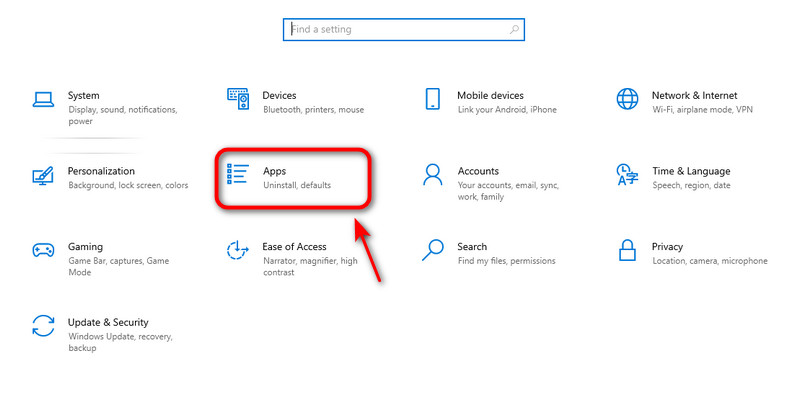
Schritt 2: Klicken Sie auf Apps auf die Einstellungen Fenster.
Schritt 3: Typ iTunes Geben Sie in der Suchleiste etwas ein. Wenn iTunes erscheint, klicken Sie darauf und dann auf „Weiter“. Deinstallieren.
Schritt 4: Klicken Sie auf Deinstallieren Zur Bestätigung wiederholen. Die Software wird dann in Kürze entfernt. Wiederholen Sie die Schritte, um iTunes-bezogene Software zu löschen. Starten Sie abschließend Ihren Computer neu.
Systemsteuerung verwenden – Für alle Windows-Versionen
Die Systemsteuerung funktioniert unter allen Windows-Versionen. Unabhängig von Ihrer Windows-Version können Sie iTunes mit dieser zuverlässigen Methode vollständig deinstallieren.
Schritt 1: Öffnen Sie den Microsoft Store auf Ihrem Windows-PC Start Menu und geben Sie „Systemsteuerung“ ein und klicken Sie darauf.
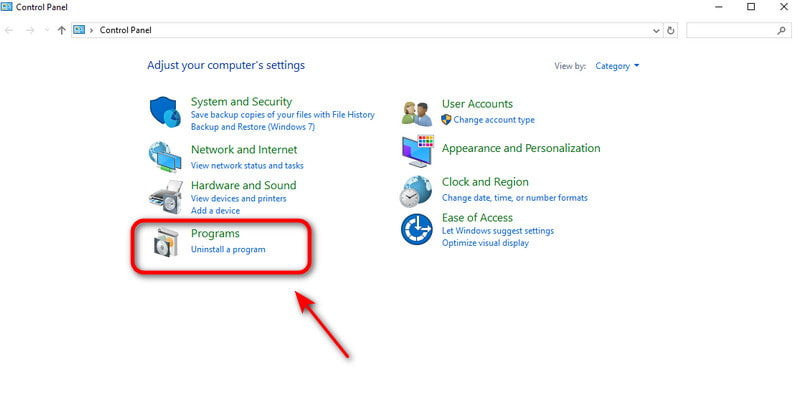
Schritt 2: Wählen Programm deinstallieren im Abschnitt „Programme“.
Schritt 3: Geben Sie „iTunes“ in die Suchleiste ein. Sobald iTunes erscheint, klicken Sie darauf. Deinstallieren.
Schritt 4: Zylinderkopfschrauben Deinstallieren Zur Bestätigung wiederholen. Die Software wird dann in Kürze entfernt. Wiederholen Sie die Schritte, um iTunes-bezogene Software zu löschen. Starten Sie abschließend Ihren Computer neu.
Teil 2: So deinstallieren Sie iTunes auf dem Mac
Wie Sie iTunes von einem Mac entfernen, hängt von Ihrer macOS-Version ab. Seit Catalina wurde iTunes durch die Apps Apple Music, Apple TV, Apple Books und Apple Podcasts ersetzt. Nutzer neuerer Systeme müssen iTunes daher nicht deinstallieren. Unter macOS Mojave und älteren Versionen ist iTunes jedoch weiterhin eine System-App. In diesem Fall müssen Sie iTunes mit einigen wenigen Schritten entfernen.
Die beste Methode zum Deinstallieren von iTunes auf allen Mac-Modellen
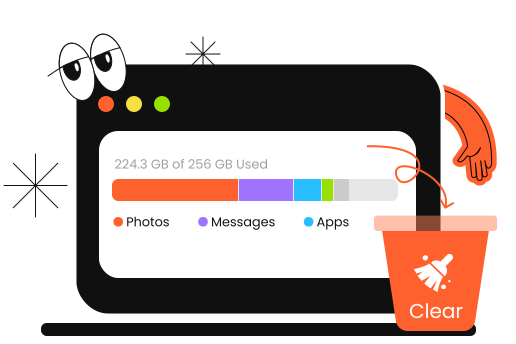
iTunes zu deinstallieren ist eine komplizierte Angelegenheit, aber Apeaksoft Mac Cleaner Es ist kinderleicht. Es funktioniert auf allen Mac-Modellen und kann ungenutzte Apps und deren Überreste problemlos und vollständig von Ihrem Mac entfernen. Darüber hinaus kann Mac Cleaner die Systemleistung überwachen, Speicherplatz freigeben und die Geschwindigkeit Ihres Macs steigern.
Ihr intelligenter Assistent zur Überwachung des Mac-Zustands
- Deinstallieren Sie Apps und zugehörige Dateien vollständig auf dem Mac.
- Deaktivieren Sie unnötige Einstellungen, um die Systemleistung zu steigern.
- Entfernen Sie Junk-Dateien, Cache, Duplikate und iTunes-Backups von Ihrem Mac.
- Überwachen Sie den Status und die Gesundheit Ihres Macs in Echtzeit.
Sicherer Download
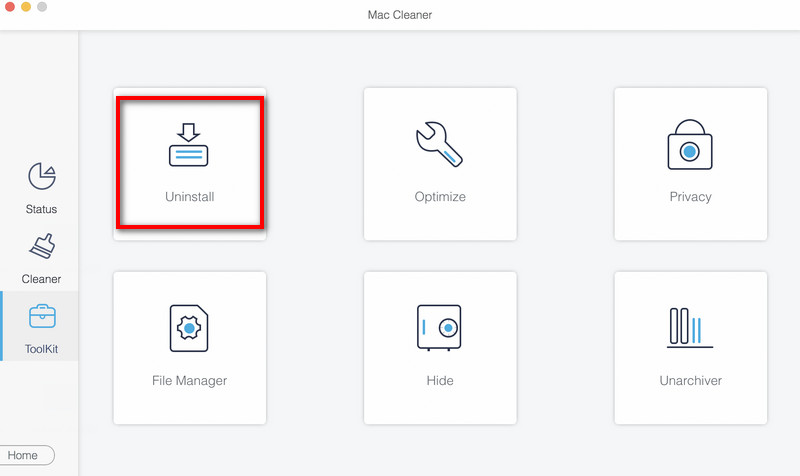
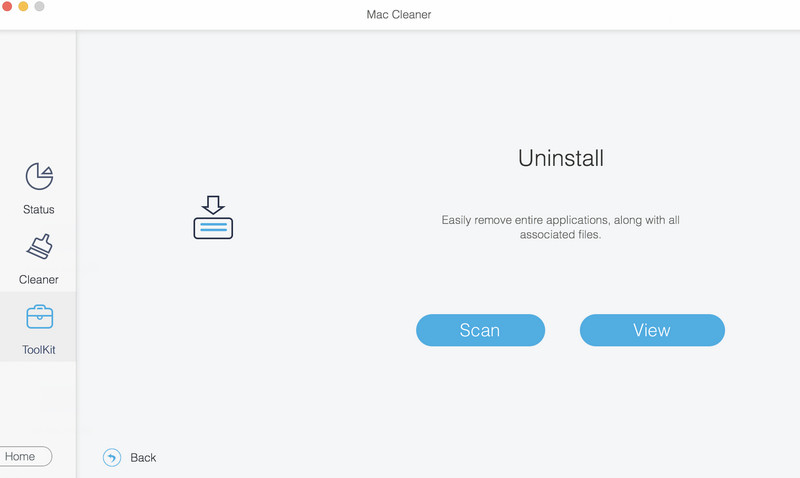
Schritt 1: Mac Cleaner starten, auswählen Toolkit auf der Benutzeroberfläche auswählen Deinstallieren.
Schritt 2: Klicken Sie auf Scannen Um alle Apps auf Ihrem Mac schnell zu scannen. Klicken Sie Ansehen um die nutzlosen Apps auf Ihrem Mac zu überprüfen.
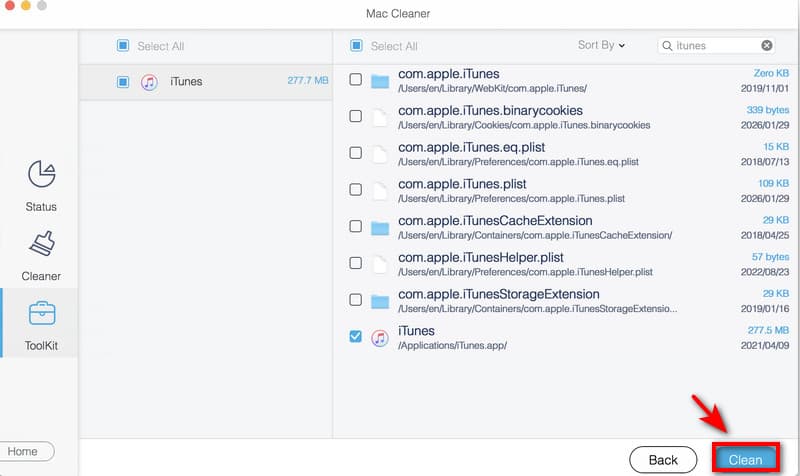
Schritt 3: Auswählen iTunes und klicken auf Clean um es von Ihrem Mac zu entfernen.
Terminal verwenden – Für macOS Mojave oder älter
Unter macOS Mojave 10.14 oder älter können Sie iTunes mithilfe von Terminal-Befehlen vollständig deinstallieren. Vor der Deinstallation müssen Sie SIP deaktivieren. Gehen Sie dabei wie folgt vor und führen Sie die Schritte sorgfältig aus.
Schritt 1: Drücken Sie auf Befehl + Leer Tasten zusammendrücken. Typ Activity Monitor in der Suchleiste. Wenn iTunes geöffnet ist, doppelklicken Sie auf iTunes und klicken auf VerlassenStellen Sie sicher, dass iTunes nicht ausgeführt wird.
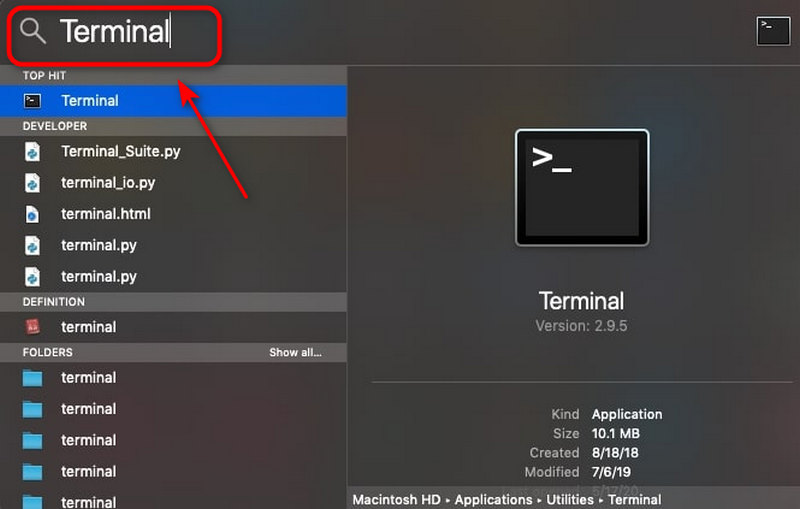
Schritt 2: Drücken Sie auf Befehl + Leer Tasten erneut, Typ Terminal im Suchfenster und drücken Sie Enter.
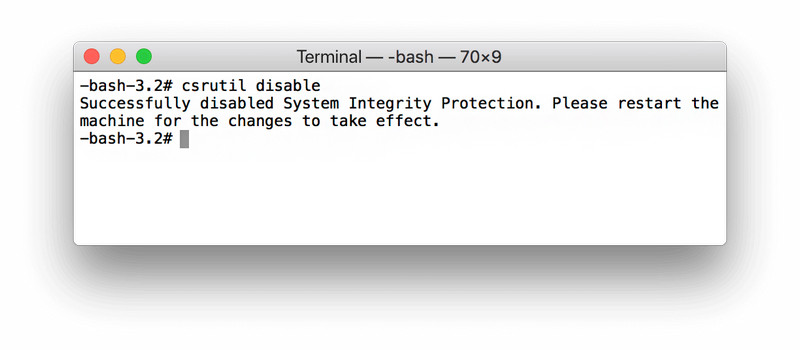
Schritt 3: Typ csrutil Behinderte um den Apple System Integrity Protection zu deaktivieren.
Schritt 4: Enter cd / anwendungen / und drücken Sie Return öffnen Anwendungsordner vom Terminal aus.
Schritt 5: Enter sudo rm -rf iTunes.app/ im Fenster drücken ReturnGeben Sie Ihren Mac-Administratorpasscode ein, um die Deinstallation zu ermöglichen. iTunes wird dann in Kürze von Ihrem Computer deinstalliert.
Schritt 6: Vergessen Sie nicht, die iTunes-bezogenen Dateien zu entfernen. Systemdaten auf dem Mac löschenGeben Sie die folgenden Befehle im Terminal ein:
- rm -rf ~/Library/Preferences/com.apple.iTunes.plist
- rm -rf ~/Library/Preferences/com.apple.iTunesHelper.plist
- rm -rf ~/Library/Caches/com.apple.iTunes
- rm -rf ~/Library/Application Support/iTunes
Hinweis: Nachdem Sie iTunes von Ihrem Mac entfernt haben, vergessen Sie nicht, den Systemintegritätsschutz (SIP) wieder zu aktivieren. Dadurch werden Ihre Systemdateien und Anwendungen vor versehentlichem Ändern oder Löschen geschützt. Gehen Sie dazu wie folgt vor: Starten Sie Ihren Mac neu > Öffnen Terminal und Typ csrutil aktivieren im Befehlsfenster > Drücken Sie Return.
Finder verwenden – Für macOS Catalina oder neuer
Unter macOS Catalina 10.15 und neueren Versionen hat Apple iTunes entfernt und durch die Apps Musik, TV, Bücher und Podcasts ersetzt. Diese Apps sind fest im System integriert und können nicht deinstalliert werden. Überflüssige Daten lassen sich jedoch über den Finder löschen.
Schritt 1: Öffne Finder und wählen Sie Gehe zum Ordner.
Schritt 2: Geben Sie unten nacheinander jeweils einen Pfad ein und klicken Sie auf Go.
- Musik-Downloads: ~/Musik/
- Fernsehsendungen und Filme: ~/Filme/Fernsehen/
- Podcast-Downloads: ~/Musik/Podcasts/
Schritt 3: Ziehen Sie unerwünschte Dateien oder Ordner in den Müll.
Schritt 4: Klicken Sie auf Gehe zum Ordner Geben Sie den folgenden Pfad ein und klicken Sie Go.
- ~/Library/Containers/com.apple.Music/
- ~/Library/Containers/com.apple.TV/
- ~/Library/Containers/com.apple.Podcasts/
Schritt 5: Löschen Sie alle Dateien in jedem Ordner.
Teil 3: Häufig gestellte Fragen zur Deinstallation von iTunes
Warum kann ich iTunes auf meinem Mac nicht finden?
Wenn auf Ihrem Mac macOS Catalina oder neuer installiert ist, existiert iTunes nicht mehr als System-App. Apple hat es in separate Apps aufgeteilt: Musik, TV und Podcasts.
Wie kann ich Apps auf meinem Mac löschen, die ich nicht deinstallieren kann?
Der einfachste Weg zu Apps auf dem Mac deinstallieren Sie können ein Deinstallationsprogramm eines Drittanbieters verwenden, beispielsweise Apeaksoft Mac Cleaner. Alternativ können Sie Apps auch über das Terminal löschen, indem Sie die folgenden Befehle eingeben: `cd /Applications` und `sudo rm -rf AppName.app`.
Warum belegt iTunes nach der Deinstallation immer noch Speicherplatz?
Mediendateien, Cache-Dateien, Sicherungsordner und andere zugehörige Dateien können nach der Deinstallation verbleiben. Sie können diese Dateien manuell mit dem Finder entfernen und den Papierkorb leeren.
Fazit
Zusammenfassend haben wir verschiedene Wege untersucht, um iTunes deinstallieren Auf Mac oder Windows. Denken Sie daran, Ihre wichtigen Dateien vorher zu sichern und vorsichtig vorzugehen, um versehentliches Löschen zu vermeiden. Für eine einfachere und sicherere Bereinigung können Sie Apeaksoft Mac Cleaner verwenden, um nicht benötigte Apps zu deinstallieren oder Speicherplatz freizugeben!
Ähnliche Artikel